 POPLoad
Getting started
How do I set up POPLoad?
Install the app from the Shopify App Store, choose which manual payment methods should show the receipt upload, and add your payment accounts with their QR codes in Settings. Then add the POPLoad block to your Thank You and Order status pages in Shopify's checkout and accounts editor; the Finish setup card on the POPLoad dashboard opens the editor for you. Place a test order with that payment method to see the upload.
Can customers pay by scanning a QR code?
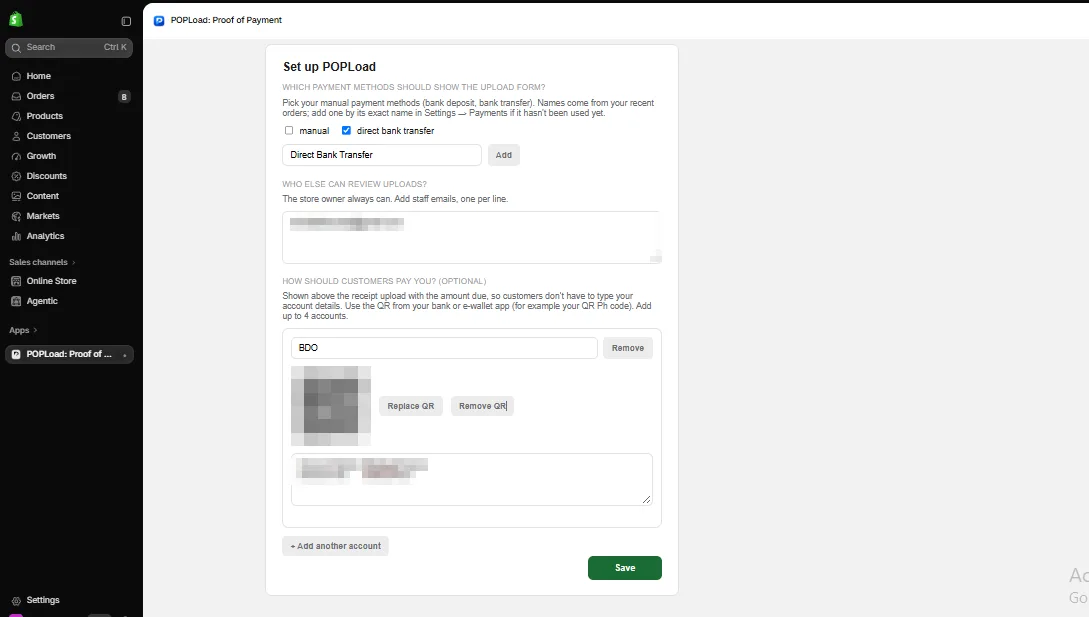
Yes. In POPLoad's Settings, the store owner can add up to 4 payment accounts, each with a name, the QR code your bank or e-wallet issued, and the account details. Customers see the amount due and your QR on the Thank you and Order status pages. With more than one account they pick one from a Pay with menu. Phone buyers can tap Download QR code and open it in their banking app, or copy the account details. POPLoad doesn't create QR codes; use the one from your bank or e-wallet app.
Which payment methods trigger the upload?
Only the manual payment methods you choose in POPLoad's settings, such as Bank Deposit. Orders paid by card, wallet or any method you didn't pick never see the upload.
Does it change my checkout?
No. POPLoad adds a block to the Thank You and Order status pages after checkout. Your payment methods and checkout steps stay the same.
Setup in pictures
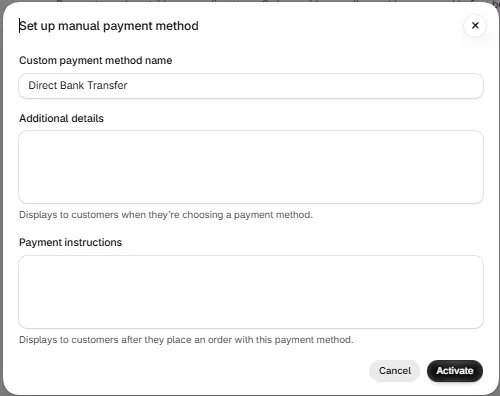
In Shopify, go to Settings, then Payments, then Manual payment methods, and create one such as "Direct Bank Transfer".
In POPLoad's Settings, tick that payment method, add any staff emails, and add your bank or e-wallet accounts with their QR codes. Click Save.
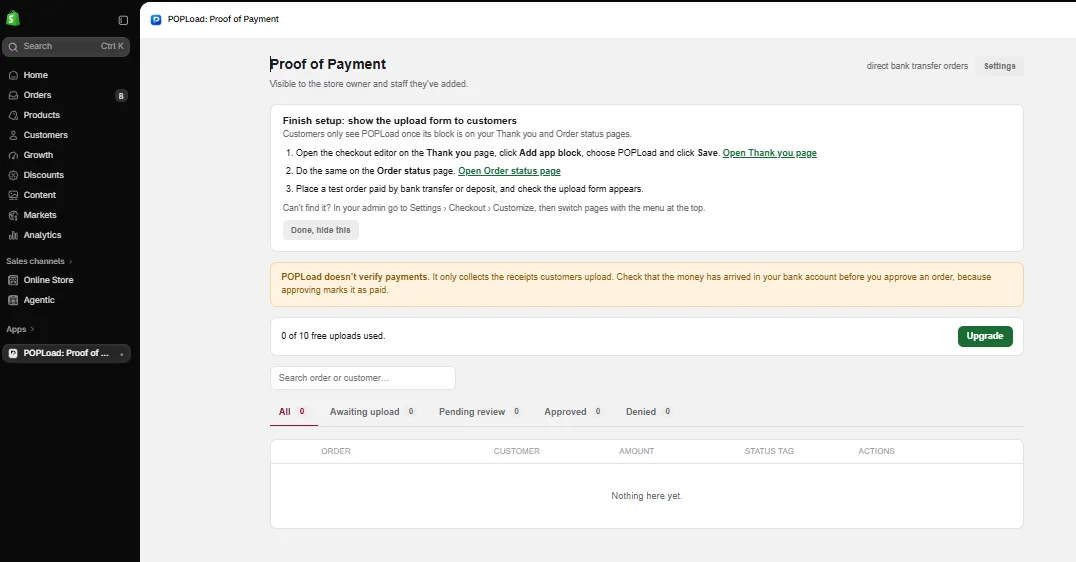
Back on the POPLoad dashboard, the Finish setup card links straight to the Thank you and Order status pages in the checkout editor.
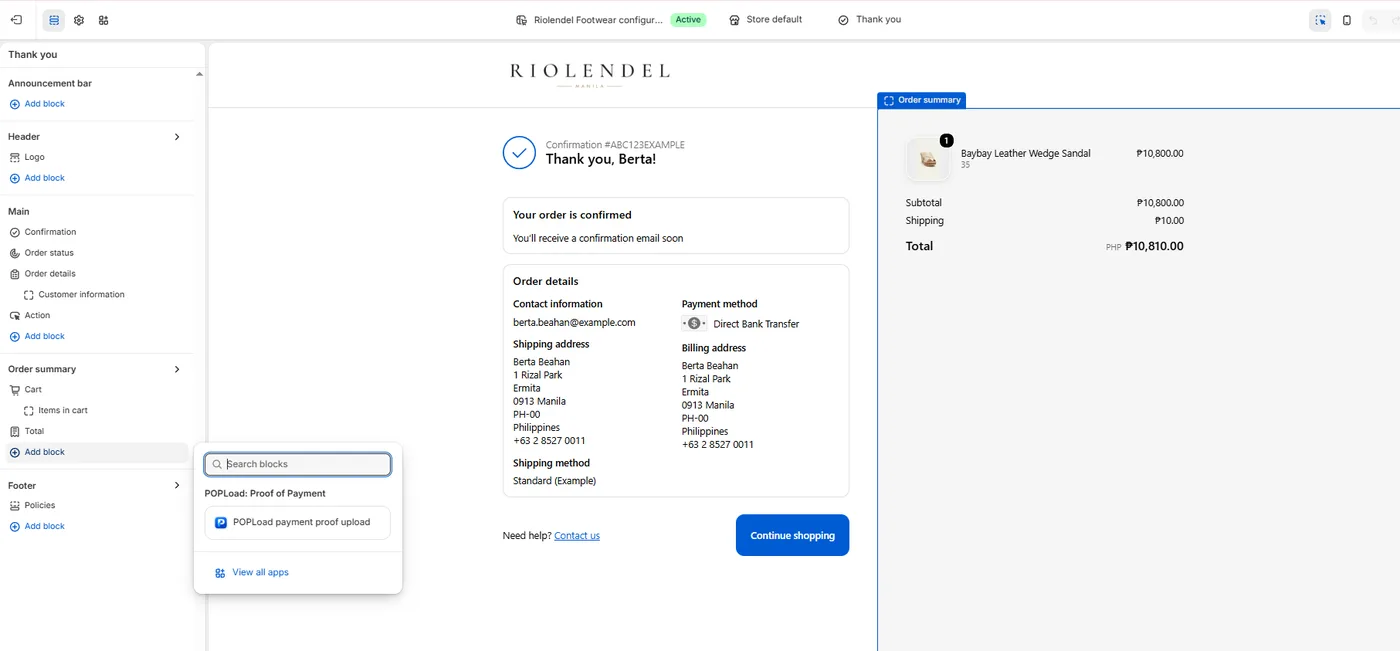
On the Thank you page, click Add block and choose POPLoad payment proof upload.
Click Save, then switch to the Order status page from the page menu at the top.
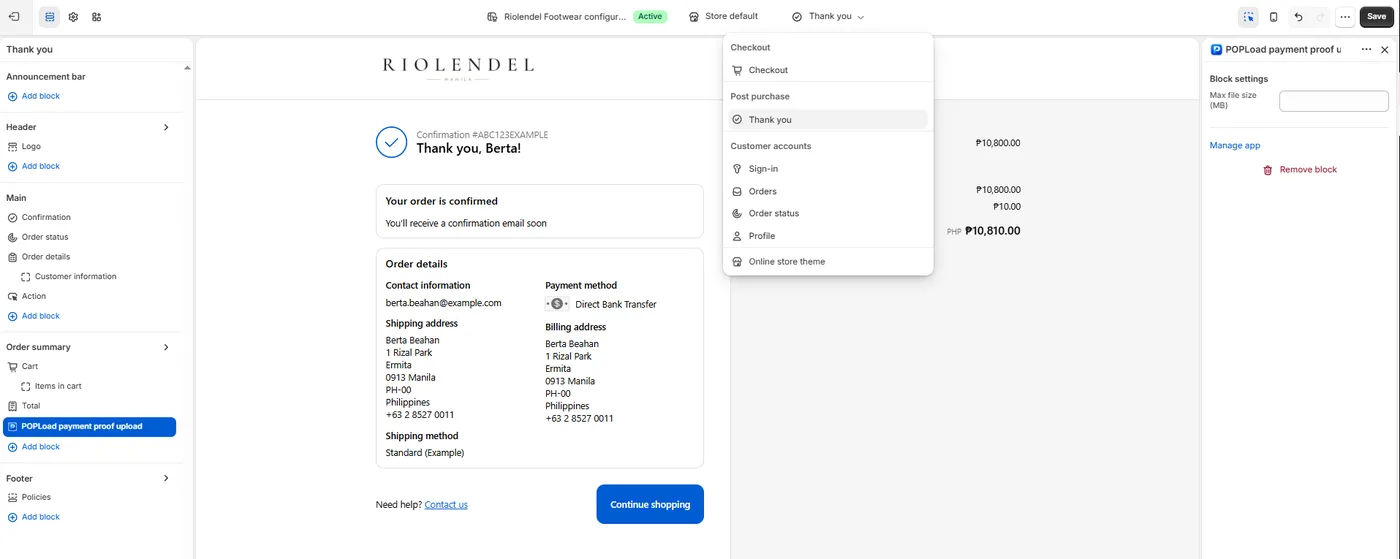
Add the same block anywhere on the Order status page and click Save. Place a test order paid by bank transfer to see the upload form.
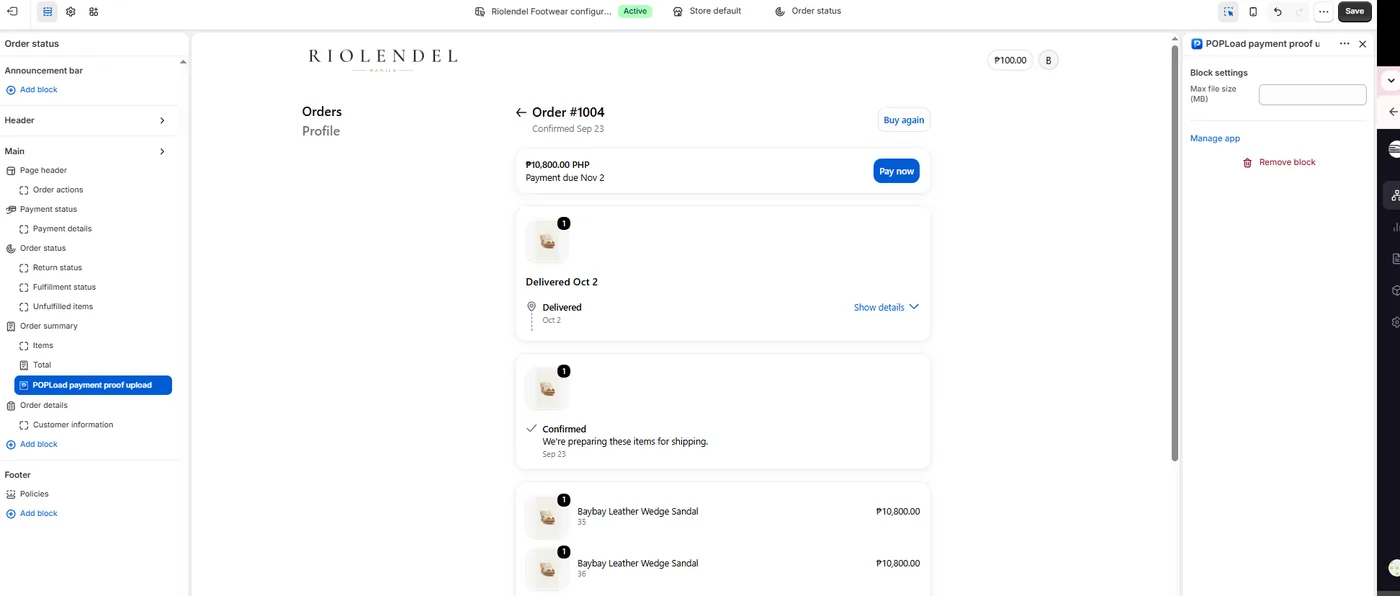
Receipts and review
What files can customers upload?
Photos and screenshots (JPG, PNG, WebP or HEIC) up to 10 MB. PDFs aren't accepted, and every file is checked to be a real image before it's saved. Customers can also add a reference number and sender name.
Does POPLoad verify the payment with my bank?
No. POPLoad shows you what the customer submitted. Check your bank account, then approve or deny the receipt.
Can POPLoad spot fake receipts?
It flags receipts that need a closer look. Each new upload is checked and gets a warning badge in the dashboard if the same file was used on another order, the reference number was already used, the file carries an AI image tool's tag, the image was saved by an editor such as Photoshop or Canva, the receipt is more than a day older than the order, the image doesn't look like a receipt, or the amount on it doesn't match the order total. POPLoad reads the receipt's text on its own server to check the amount and reference number. Nothing is denied automatically, and a cropped or re-screenshotted receipt can pass the checks, so always confirm the money arrived before approving.
What happens when I approve a receipt?
The order is marked as paid in Shopify, and POPLoad updates its tag and adds a note saying who approved it. The receipt link is already in the order note from when the customer uploaded it.
What happens when I deny a receipt?
The order stays unpaid, its tag is updated so you can follow up, and your deny reason is added to the order note and saved with the receipt.
Who can review receipts?
The store owner and the staff members the owner adds to POPLoad's staff list. Only the store owner can change that list.
Where are receipt files stored?
In your own Shopify Files, under your store's control.
Plans and billing
What do I get for free?
10 proof-of-payment uploads in total, with every feature included. The allowance is one-time and does not reset each month.
What happens after the 10 free uploads?
New uploads pause until you choose a plan: Starter at $9.99/month ($99/year) for up to 50 uploads a month, or Pro at $14.99/month ($129/year) for unlimited uploads. Receipts you already have stay available in the dashboard.
What if I go over 50 uploads on Starter?
New uploads pause until your 30-day period resets, or you can switch to Pro for unlimited uploads at any time.
How am I billed?
Through Shopify, in USD, on your regular Shopify invoice. There are no per-order fees.
Uninstalling and your data
How do I uninstall POPLoad?
In Shopify admin, go to Settings, then Apps and sales channels, select POPLoad and choose Uninstall. Any subscription ends with the uninstall.
What happens to my data when I uninstall?
48 hours after you uninstall, Shopify asks us to delete your store's data and we remove it from our database. Receipt files in your Shopify Files stay with you. See the privacy policy for details.
Contact support
Email support@mindlabfuture-ai.com with your store's myshopify domain and, if it's about a specific order, the order number. We reply within 1 business day, Monday to Friday.